Get Ready for UNO 2.0
The new UNO experience is here for select customers through early access.
Check your email and SMS to see if it’s your turn.
FAQs: Upgrading to UNO 2.0
- About the New and Upgraded App
- Upgrading to UNO 2.0
- My Savings, Time Deposits, Loans, & Cards
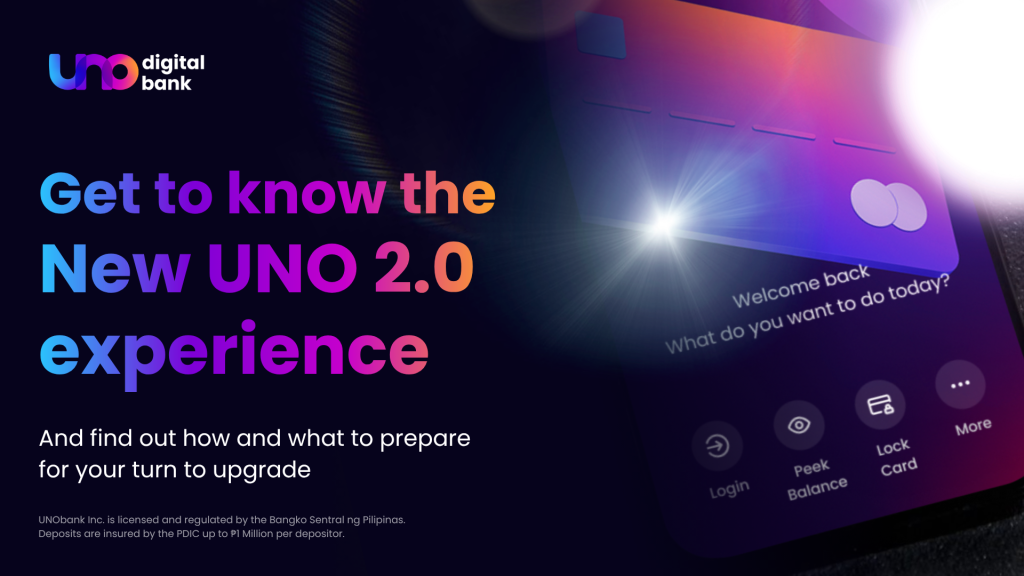
Meet the new UNO — elevating you, reimagined. The new UNO Mobile App is a full upgrade of our banking platform — built to be faster, more secure, and easier to use. It comes with a refreshed interface, stronger security features, and new capabilities to make your banking experience smoother overall.
Yes. The new UNO Mobile App will fully replace the existing app. We recommend upgrading to the new app as soon as it’s available so your banking stays uninterrupted.
Here’s what you can look forward to:
A personalized dashboard and cleaner interface that makes navigating your finances easier, with Light Mode, Dark Mode, or your own custom theme
Stronger security with biometric login, multi-factor authentication, and real-time fraud alerts
Faster, more stable transactions, and quicker account access
Enhanced payments, and a smoother onboarding experience
The old app will still be available for anyone who hasn’t yet upgraded to UNO 2.0, but service will be discontinued soon.
Yes. You’ll receive updates through SMS, email, and in-app notifications before the old app is discontinued. Please keep your registered mobile number and email address updated so you don’t miss any important announcements.
After the old app is discontinued, you will no longer be able to access mobile banking services through the old app. Upgrade to the new UNO Mobile App (UNO 2.0) as early as possible to continue banking without interruption.
- Faster fund transfers with real-time processing
- Enhanced bill payment options with more billers
- A personalized, customizable dashboard
- Light Mode and Dark Mode themes
- Smoother onboarding and account management
- And more features rolling out regularly
Yes. UNO Digital Bank is a BSP-licensed digital bank, and your deposits are insured up to ₱1 Million per depositor by PDIC.
The app itself includes:
- Biometric login
- Multi-factor authentication (MFA)
- Automatic session timeout
- Real-time fraud alerts
Contact our Customer Happiness Team right away:
- In-App Chat
- Call us: (02) 8811 8866 or +63 919 059 9866 (24/7 fraud hotline)
Yes. We’ll be rolling out new features and improvements regularly. Stay tuned to our official social media channels and in-app notifications.
Support for the old app will be limited once the new app launches, and will be fully discontinued soon.
- Open the Apple App Store if you’re using an iPhone, or the Google Play Store if you’re using an Android device.
- Search for the app using the name applicable to your device:
- iOS: UNO Digital Bank: Save & Grow
- Android: UNO Digital Bank
- Select the official UNO Digital Bank app and tap Get or Install.
No. The UNO Mobile App is free to download and use. Standard mobile data charges from your network provider may apply.
If both apps appear in search results, check for an update to your current app first — you may already be on the right version. When in doubt, use the download link in our official emails, SMS, or uno.bank to make sure you’re getting UNO 2.0.
If your phone does not meet the minimum OS requirement, first check if an update is available for your device. If there is, update your device OS and try accessing the app again.
If your device cannot be updated, message us via In-App Chat on your existing app, or contact our Customer Happiness Team if you cannot access the app. We’ll ask for your device model, OS version, and what you need help with, then check the approved options available for your situation. For your security, we cannot recommend unsupported app versions, workarounds, or ways to bypass the OS requirement.
If you’re an existing UNO customer, you won’t need to start from scratch. You can log in using the mobile number connected to your UNO account. You will be prompted to register with new Selfie scan, password and passcode.
For your security, you will be required to re-register your login credentials when setting up the new app. This is a one-time step to make sure your account is protected under the latest security standards.
Tap “Forgot Password” on the login screen and follow the steps to reset your password. If you’re not able to get back into the app at all to try this, contact us through our hotlines.
Download the UNO Mobile App on your new phone and log in — there’s nothing you need to do on your old device first. UNO keeps one trusted device at a time, so once you log in successfully on the new phone, it becomes your trusted device and you’re signed out of the old one automatically. Keep your registered SIM in the new phone so you can receive your OTP.
Yes, you can upgrade from anywhere with an internet connection. If you run into trouble with OTP delivery while abroad, message us via In-App Chat and our Customer Happiness Team can assist.
Yes. All your account details, transaction history, and financial records will be fully available in the new UNO Mobile App. Your information carries over safely as part of your upgrade. One exception: your profile photo won’t carry over — you’ll be able to upload a new one after upgrading.
Yes. Your saved payment contacts and billers will automatically carry over to the new app as part of your upgrade, so you won’t need to re-enter them.
One thing to note: billers that are no longer active or supported in UNO 2.0 won’t be available after you upgrade. If you notice a biller missing, it may have been removed from the new app’s supported list. For a full list of supported billers, check the Pay Bills section in the new app.
No, your account number and account details will remain exactly the same — unless we’ve separately communicated otherwise as part of a broader system update.
If you’ve set a customized transaction or daily limit in the current app, that limit will carry over to UNO 2.0 and continue to apply.
If you haven’t made any changes to your limits, UNO 2.0’s default limits will apply automatically.
If a previously set limit exceeds what UNO 2.0 supports, the system will apply the closest approved limit under the new app’s rules. You can always review and update your limits in the Settings section of the new app.
Yes. Your saved contacts for fund transfers will carry over to the new app as part of your upgrade, so you won’t have to re-add your frequently used recipients.
This happens in the background when you first log in after upgrading, so there may be a brief delay before all your contacts appear. If you don’t see them right away, give it a few minutes and check again.
Yes. Your notification history from the past 30 to 60 days will carry over to the new app.
When you first open the notification center, it may appear empty before your history loads or before new notifications come in — that’s normal. Everything will be in order once your upgrade is complete.
Your pending service requests will carry over to the new app — you won’t need to resubmit them. Your case history stays intact, and our team can continue assisting you without starting over.
If you have an active concern, you can track it through the new app or message us via In-App Chat for an update.
Start with In-App Chat — tap the chat icon in the UNO Mobile App (it’s available even before you log in). That’s the fastest way to reach our Customer Happiness Team.
If you genuinely can’t open the app at all, you can also call us at (02) 8811 8866 or +63 919 059 9866 (daily, 6 AM–10 PM; our fraud line runs 24/7). You can always browse uno.bank for general information too.
There may be brief, scheduled service windows during the upgrade period. We’ll notify you in advance through our official channels if this happens.
You can have both apps installed on your phone. However, once you complete your upgrade — finishing registration and setup on the new UNO Mobile App — for security reasons, your access to the old app switches off automatically. This happens for your account specifically, at the moment you finish upgrading.
Nothing changes until you complete registration and set-up on UNO 2.0. Installing the app alone does not affect your old app access.
Once you’ve completed your upgrade, the old app will no longer work for your account. Message us via In-App Chat and we’ll help you directly through UNO 2.0.
Your #UNOready Savings Account will continue to operate normally throughout your upgrade. Your balance, transaction history, and account number remain unchanged, and you’ll continue earning daily interest.
Your Time Deposit accounts are not affected by your upgrade. All active accounts will continue to earn interest as usual.
Your #UNOnow loan remains active and unaffected. Repayment schedule, outstanding balance, and Auto Debit Arrangement (ADA) will continue without interruption.
Your debit card details remain the same.
Please note that card services will be temporarily paused starting October as we work on improving the card experience. We’ll keep you updated when card services resume next year.
No, your #UNOready@GCash account is not affected. Your balance, savings history, and Time Deposits remain intact.
Yes. Your GCash app access remains fully operational throughout the upgrade period.
Yes. If you previously linked your GSave account to the old UNO Mobile App, you will need to re-link it to the new app:
- Download and open the new UNO Mobile App
- Enter the mobile number registered to your GSave account
- Verify via OTP, complete a Selfie Scan, and set your password
Your GCash Time Deposits are unaffected. Active #UNOboost@GCash and #UNOearn@GCash accounts will continue to earn interest as scheduled.
Yes. You can continue to open Time Deposits directly through the GCash app at any time. For a higher deposit limit of up to ₱500,000, link your GSave to the new UNO Mobile App.
FAQs: Using Your UNO Account
- Opening Your Account
- Applying for a Loan
- Account Management & Customization
- Send & Receive Money, Pay Bills
- Savings & Time Deposits
- Debit Card
- Insurance & Protection Benefits
- Rewards, UNO Coins, & Referrals
- Using UNO via Gcash (Gsave)
- Notifications & Messaging Support
You can open a #UNOready Savings Account with UNO Digital Bank if you’re:
- A Filipino resident, at least 18 years old
- Have a present or permanent address in the Philippines
- Have at least one valid government-issued ID
- Have a valid local mobile number and email address
PhilSys ID / ePhilID / Digital National ID, Driver’s License, Passport, UMID, PhilHealth ID, PRC ID, SSS ID, or Postal ID.
Opening a #UNOready Savings Account takes about 5 minutes:
- Download the UNO app and tap Log In or Sign Up, then enter your mobile number and verify it via a 6-digit OTP.
- Choose the #UNOready Savings option.
- Accept the Terms and Conditions and Data Privacy statement.
- Select and scan a valid ID (ID photo, then signature), then complete a Selfie Scan.
- Review your details, then confirm your residential address, employment details, and source of funds.
Your account is active immediately once submitted.
A few quick fixes usually solve this:
- For your ID photo: turn off the camera flash, and make sure the entire ID is visible and uncovered inside the frame.
- For the Selfie Scan: find good lighting, remove glasses or a hat, and center your face inside the oval outline at eye level with your eyes open.
If it’s still being rejected after trying these, message us via In-App Chat and our support team can take a closer look.
To learn more about our loans, you may visit this page.
- From your dashboard, go to the Loans tab → tap Apply or View My Offer.
- Review and accept the device-data consent and loan consents
- Review your pre-filled details and confirm or edit as needed.
- Upload any requested supporting documents.
- Review your Application Summary.
- Submit.
- Track your application anytime under the Loans tab.
Yes, slightly:
- If you already have an UNO savings account: your profile is pre-filled from your existing account. The whole process takes about 5 minutes.
- If you’re brand new to UNO: you’ll go through identity verification first — selecting and scanning a valid ID, a Selfie Scan, and setting up your password and passcode — before moving into the loan-specific steps above. This takes about 10 minutes and also opens a #UNOready Savings account for you at the same time.
- If you’ve borrowed from UNO before: your details are pre-filled from your previous loan application rather than your savings account, with easy confirm-or-edit steps for your information.
Try force-closing and updating the app first — this is sometimes just a display issue. If the error persists, message us via In-App Chat with your registered mobile number and our Customer Happiness Team can check your loan offer directly.
For anything related to a past-due loan or repayment arrangements, just give us a call at (02) 8811 8866 or +63 919 0599866 (press #2) or email us at collections@uno.bank, and our team will guide you.
From the app’s pre-login home screen, you can:
- Peek Balance – check your Available Balance
- Contact Us, Locate Us, and browse FAQs
- Change Mobile Number
- Kill Switch – block outgoing transactions if you think your account has been compromised
You can log in with your registered mobile number and password, or with biometrics (fingerprint or Face Scan) once you’ve enabled it. After a password login, you’ll be prompted to enable biometrics for faster access next time.
To turn biometrics on or off later: Go to Settings → Security & Privacy → Biometrics toggle.
On the login screen, tap Get Help → Forgot Password and follow the instructions on-screen to set your new password.
To change your password while already logged in: Go to Settings → Security & Privacy → Change Password and follow the instructions on-screen.
Go to Settings → Reset Passcode and follow the instructions on-screen.
Go to Settings (or, if you’re not logged in, the pre-login More menu) → Change Mobile Number. Follow the instructions on-screen.
Go to Settings → Security & Privacy → Reset Debit Card PIN and follow the instructions on-screen. You’ll see a confirmation screen once it’s ready to use for ATM and in-store transactions.
Please note that card services will be temporarily paused starting October as we work on improving the card experience. We’ll keep you updated when card services resume next year.
Your Home dashboard has four swipeable views: Total Portfolio, Savings, Time Deposits, and Loans — each showing your balance, recent transactions, and relevant quick actions.
- Tap Customize at the bottom of your dashboard to enter edit mode.
- Press and hold a widget to reorder it.
- Tap the ✕ icon to remove a widget.
- Tap + Add Widgets to bring in extras like Bills, Time Deposits, or Loans widgets from the Widget Library.
- Not happy with your changes? Tap Reset to Default to start over.
- You can also tap Reorder Accounts to change which account view shows first — just drag to reorder.
Message us via In-App Chat and our Customer Happiness Team will guide you through it. Any outstanding balances or obligations need to be settled first before your account can be cl
- Tap Send on your dashboard.
- Choose where it’s going: a UNO account, another bank or e-wallet, or a QR code.
- Enter the recipient’s details and the amount.
- Review, then confirm with your biometrics or passcode.
- Tap Add on your dashboard.
- On the Add Money screen in the UNO app, copy your UNO Account Name and Account Number.
- Log in to your other bank’s app or online banking.
- Choose “Send to another bank” or “Interbank transfer”, and search for UNObank or UNO Digital Bank as the recipient bank.
- Choose your transfer method — InstaPay (credits in real-time) or PESONet (may take up to 1 working day).
- Enter your UNO account details and the amount.
- Confirm and wait for the funds to arrive.
Make sure the account name you enter matches your registered UNO name exactly, and keep your transaction reference number just in case. Note that your other bank may charge its own transfer fee.
- Tap QR
- You can either Scan QR Code or Upload QR Code.
- Enter and/or confirm the amount you will transfer.
- Authorize with biometrics or your passcode.
QR payments to other accounts and to merchants are free of charge.
You may visit this page for the complete information on our Fees, Limits, and Charges.
If the account you sent to is valid and active and the transfer went through, we can’t reverse it or refund the amount on our own. What we can do is coordinate with the receiving bank on a best-effort basis to help recover your money. Message us via In-App Chat as soon as you notice, with your transaction reference number ready. Recovery depends on the receiving bank and on the recipient, so please double-check recipient details before you confirm any transfer.
- On your dashboard, tap Pay → Bills.
- Select your biller (search by name or browse by category).
- Enter your details and the amount.
- Review, then confirm with biometrics or your passcode.
You may visit this page for the complete information on our Fees, Limits, and Charges.
A small number of billers are no longer supported in UNO 2.0. Check the current list under Pay Bills in the app.
#UNOready earns interest every day, credited to your account automatically. Your rate depends on your available end-of-day balance.
You earn the same rate whether you access your account through the UNO app directly or through #UNOready@GCash.
To learn more about our #UNOready Savings Account, you may visit this page.
From time to time we also run limited, time-bound promotional rates. Always check the app for what’s currently available.
To learn more about our #UNOboost and #UNOearn Time Deposits, you may visit this page.
From time to time we also run limited, time-bound promotional rates. Always check the app for what’s currently available.
- From your dashboard, go to the Time Deposits tab.
- Choose #UNOboost or #UNOearn and tap Open Now.
- Set your amount and term.
- Review the interest rate, maturity date, and maturity instruction, and confirm.
- Open the Time Deposit’s details.
- Tap Pre-Terminate.
It’s what happens to your Time Deposit once it matures: Payout, Rollover Principal, or (for #UNOboost only) Rollover Principal + Interest. You can change it anytime up to 2 days before maturity, from the Time Deposit’s details screen.
Open the Time Deposit’s details → Download Certificate.
The file is password-protected. The password is your birthdate in YYYYMMDD format (for example, April 27, 1990 would be 19900427).
- Go to Menu → Bank Certificate → Request New.
- Choose your purpose.
- Add recipient details, select which accounts to include and which balance type.
- Submit the details and your certificate generates instantly. You can view, download, share, or have it emailed to your registered address.
You can request one certificate per day.
- Virtual Debit Mastercard: Online and retail purchases only — not for ATM withdrawals or in-store tap/swipe
Physical Debit Mastercard: ATM, in-store, and online — numberless card design for extra security
You may visit this page for the complete information on our Fees, Limits, and Charges.
Please note that card services will be temporarily paused starting October as we work on improving the card experience. We’ll keep you updated when card services resume next year.
- Virtual card: Deposit at least ₱500 into your #UNOready account, then go to My Card → Activate.
- Physical card: Once it physically arrives, go to My Card, tap the activation banner, confirm you’ve received it, agree to the Debit Card Terms, and authenticate with biometrics or your passcode.
Please note that card services will be temporarily paused starting October as we work on improving the card experience. We’ll keep you updated when card services resume next year.
Yes. Under My Card → Settings, you can toggle Online Transactions and International Transactions on or off, and set your own per-transaction and daily spending limits. Some limit changes may require you to authenticate before they take effect.
Please note that card services will be temporarily paused starting October as we work on improving the card experience. We’ll keep you updated when card services resume next year.
In the mobile app, check if your card is not locked, card’s channel settings are turned on and the limits are set properly.
If everything is alright and it is still not working, this is usually just a terminal setting, not a problem with your card or account. Some point-of-sale terminals default to BancNet as the payment network, but UNO Debit Cards run on Mastercard rails — so transactions won’t push through if BancNet is selected. Ask the cashier to choose “Mastercard/Visa” on the terminal instead.
Still declined after that? Message us via In-App Chat and our Customer Happiness Team can check your card’s status.
Please note that card services will be temporarily paused starting October as we work on improving the card experience. We’ll keep you updated when card services resume next year.
Contact our Customer Happiness Team to report it and request a replacement — via In-App Chat, or call our 24/7 Fraud Hotline at (02) 8811 8866 or +63 919 059 9866.
Please note that card services will be temporarily paused starting October as we work on improving the card experience. We’ll keep you updated when card services resume next year.
Go to your Transaction History.
Tap the specific transaction to open Transaction Details.
Tap the Report an Issue button.
Provide the transaction details.
Review and submit.
Monitor the progress of the dispute in your Messages tab.
Keep an Average Daily Balance of ₱10,000 in #UNOready and you get free Personal Accident Insurance coverage worth PHP 100,000.00, valid until you turn 66.
Learn more about our insurance products by tapping Insure on your app dashboard.
- For the free life insurance or for Credit Armor: contact Sun Life Grepa Financial, Inc. at (02) 8-866 6360 / (02) 8-866 6361 (Mon–Fri, 8AM–5PM), or email slgfiamcustomerservice@sunlifegrepa.com.
- For Singlife products: file a claim via Singlife on the UNO app, or email help@singlife.com (response within 24 business hours).
UNO Coins is UNO’s official rewards program.
Coins are valid for 2 years from the date they’re credited (oldest Coins are used first), and vouchers are valid for 1 year. Coins aren’t transferable or directly convertible to cash.
To learn more, you may visit this page.
Coins are normally earned through Missions (completing certain actions in the app) and by referring a friend who opens a #UNOready account or #UNOnow loan. We’re preparing more offers, Missions, and Referral Program campaigns to give you more ways to earn UNO Coins soon. Watch the app and our official channels for announcements about upcoming campaigns.
Your Coins balance is safe and carries over to the new app, with the same expiry dates as before.
It’s the same #UNOready savings account, opened and managed through GCash’s GSave feature.
Depositing into #UNOready@GCash from your GCash wallet is free. Withdrawing back to your GCash wallet is also free.
Yes, #UNOboost@GCash and #UNOearn@GCash follow the same rate tables as the regular versions. The minimum deposit amount is ₱5,000; the maximum is ₱100,000 if managed only through GCash, or up to ₱500,000 if you link your GSave account to the full UNO Mobile App.
- Open the UNO Mobile App.
- Enter the mobile number registered to your GSave account.
- Verify via OTP, complete a Selfie Scan, and set your password.
Once linked, your existing GSave account and its full banking history become accessible in the full app, alongside everything else UNO offers.
Your Notifications hub shows recent alerts. Tap View All to see your full history, and Mark All Read to clear them. When you first open UNO 2.0, this history may take a moment to load — that’s expected.
- From the Notifications & Support hub, tap Messages → Send Your First Message (or, if you’ve messaged before, the compose icon).
- Choose a category and type your message.
- Tap Send.
- You’ll get a reference number and replies will show up in the same conversation thread.
Yes — tap FAQ on the Notifications & Support hub, choose a category from the dropdown, and browse or search for your question.
In-App Chat is the first and fastest option. Tap the chat icon in the UNO Mobile App to access it. Our Customer Happiness Team is on daily from 6 AM to 10 PM.
You may also reach us via our hotlines: (02) 8811 8866 or +63 919 059 9866.
Frequently Asked Questions
UNO 2.0 is a refreshed UNO app experience designed to make everyday banking simpler, smoother, and more convenient.
When UNO 2.0 becomes available to you, you’ll need to re-register your account before accessing the new app experience. We’ll guide you through the process when it’s your turn.
Make sure your UNO-registered mobile number is active and can receive an OTP, you have access to your registered email address, and your personal information with UNO is updated.
No. Please do not register until we confirm that UNO 2.0 is ready for you.
We’ll send you an official UNO 2.0 activation notice when your access is ready.
Your notice will include the official download link and step-by-step instructions to help you register and access UNO 2.0.
Yes. Your existing UNO account and funds remain secure throughout the transition to UNO 2.0.
No action is required. Please wait until we officially confirm that UNO 2.0 is ready for you.
For questions or assistance, please contact UNO through our official customer support channels:
- Phone (landline): (02) 8811 8866
- Phone (mobile): +63 919 059 9866